How to Fix “This Content Isn’t Available, Try Again Later” on Every Video
By FreeTricksWorld | Updated: April, 2026
Are you suddenly getting hit with the frustrating “This content isn’t available, try again later” error on every video you try to watch? You are not alone. This has become one of the most common issues for users browsing media platforms recently, and it usually stems from automated security handshakes, browser glitches, or ad-blocking extensions failing to communicate properly.
Fortunately, there are a few proven ways to bypass this error and get your player working again. Here is how to fix the “this content isn’t available, try again later” error step-by-step.
Also Read: The Most Searched Niches on YouTube
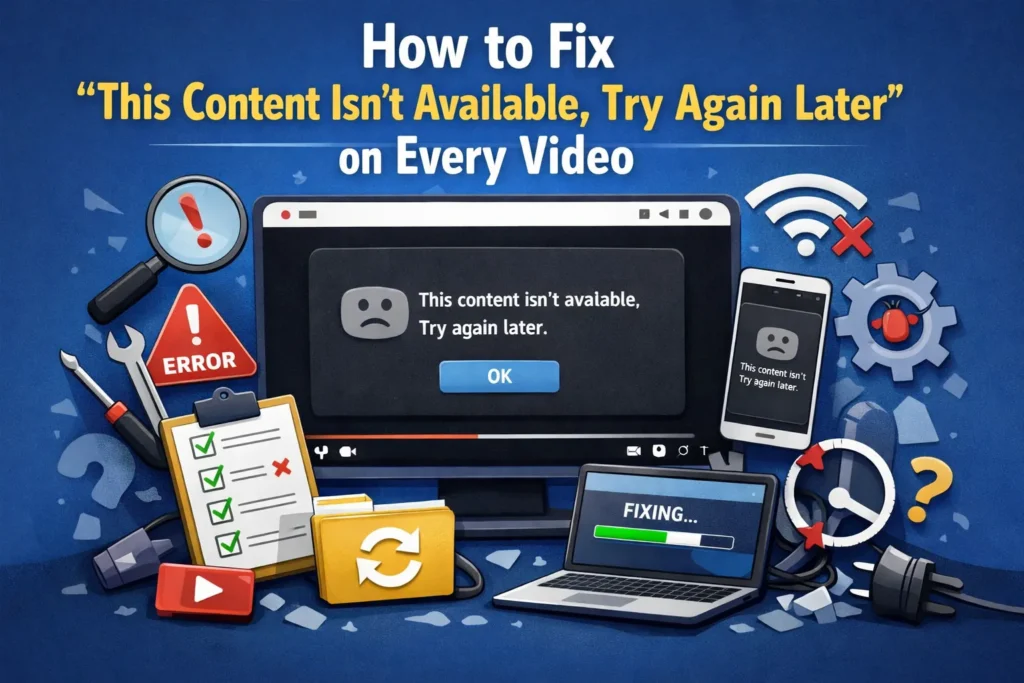
5 Quick Fixes for “This Content Isn’t Available”
1. The Hard Refresh Trick
If you are getting this error on every video but the video loads after you refresh, your browser is likely struggling with a failed playback handshake.
- The Fix: Instead of just clicking the refresh button, do a “Hard Refresh” by pressing Ctrl + F5 (Windows) or Cmd + Shift + R (Mac). This forces the browser to ignore its saved cache and load the page entirely from scratch.
2. Update or Tweak Your Ad-Blocker Settings
The most frequent cause of this persistent error is platforms updating their anti-adblock scripts. If you use an ad-blocker like uBlock Origin or similar extensions, your extension might be clashing with the site.
- Update the Extension: Open your ad-blocker dashboard, find the filter lists, and click “Update Now.”
- The “Quick Fixes” Solution: Many users have found success by going into their ad-blocker settings, locating the filter lists, and unchecking the “Quick Fixes” option.
3. Clear Your Browser Cookies and Cache
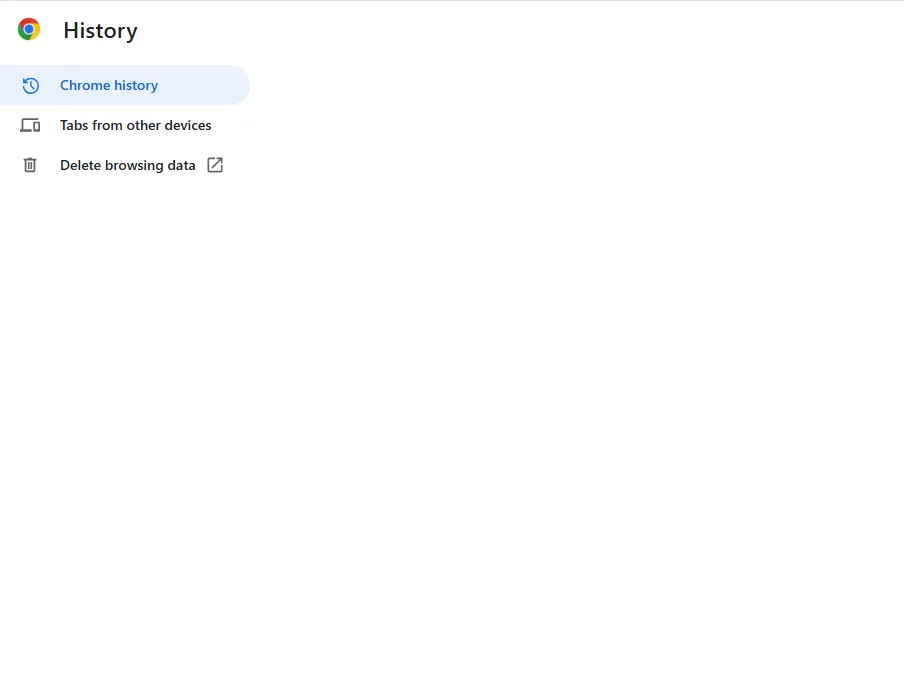
A corrupted cookie tied to your active account can trigger this error continuously across different devices.
- Go to your browser settings.
- Search for Clear Browsing Data.
- Select “Cookies and other site data” and “Cached images and files.”
- Click clear and restart your browser.
4. Test in Incognito Mode or Sign Out
To see if the problem is directly tied to your specific account profile (which happens often during A/B site testing):
- Open a new Incognito / Private Window.
- Try playing the exact same video.
- If it plays without a problem, the issue is account-flagged or tied to one of your active browser extensions.
5. Disable Experimental Browser Flags
Sometimes, background experimental protocols in your browser mess with video delivery.
- In your browser address bar, type
chrome://flags(oredge://flags,brave://flagsdepending on your browser). - Search for Experimental QUIC protocol.
- Change it from “Default” or “Enabled” to Disabled, then relaunch the browser.
Also Read: List of Agent17 Cheat and Coupon Codes
Summary Troubleshooting Checklist
| Problem Source | Quickest Solution |
| Extension Conflict | Disable or update your ad-blocker |
| Account Flagging | Try watching signed out or in Incognito |
| Corrupted Data | Clear site cookies and hard refresh (Ctrl + F5) |
| Browser Bug | Disable Experimental QUIC flags |

admin