1and1 Webmail Complete Setup Guide (2026): Login & SMTP Settings
By FreeTRicksWorld | Updated: March 31, 2026
1&1 Webmail (now known as IONOS Webmail) is one of the most reliable professional email services in the world. Whether you are setting up your business inbox for the first time or trying to sync your mail to Outlook or an iPhone, this complete guide covers everything you need to know.
How to Register for an IONOS Webmail Account
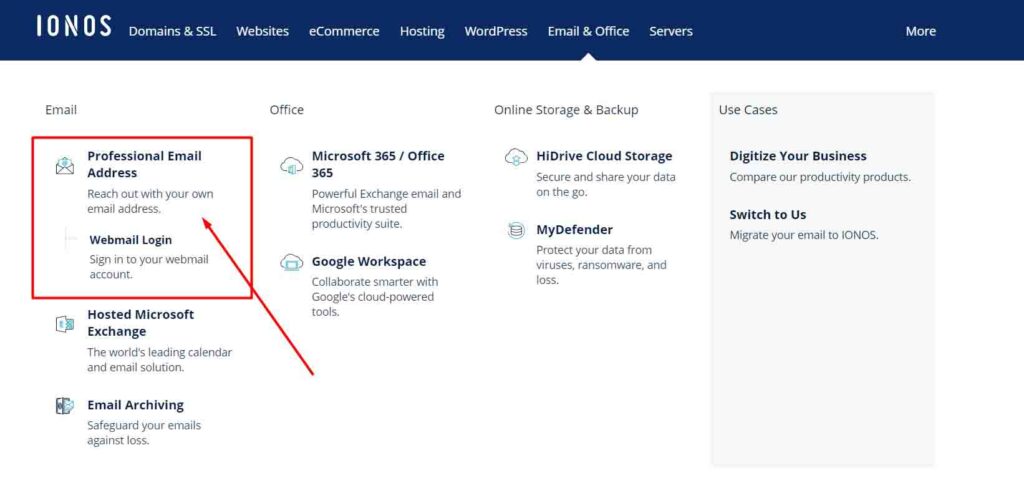
To get started with a professional email address, follow these simple registration steps:
- Go to the official website at ionos.com.
- Hover over the “Email & Office” menu and select your preferred email registration option.
- Choose between a standard Mail Basic plan or a Microsoft 365 integration plan depending on your business needs.
- Follow the on-screen prompts to choose a custom domain, enter your billing details, and complete the sign-up.
1&1 Webmail Login Steps
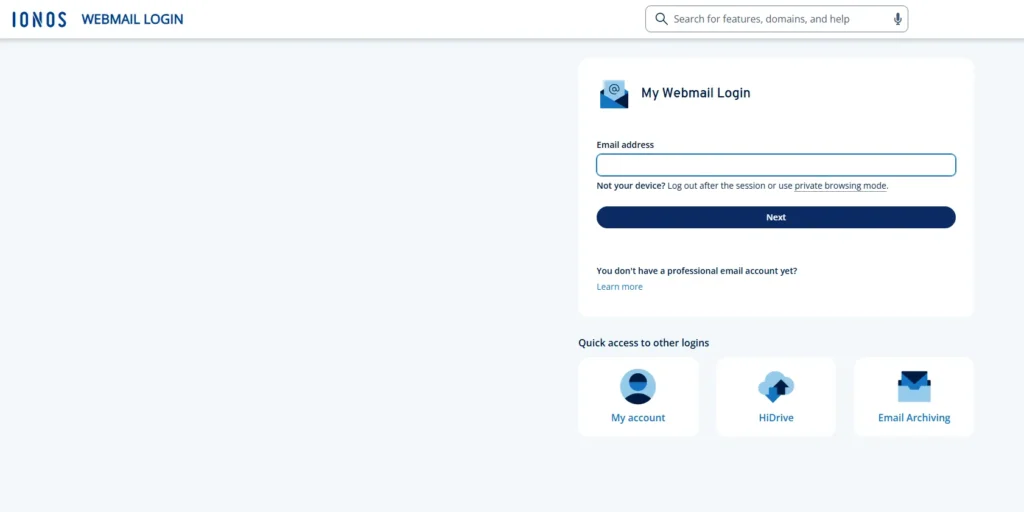
Once your account is created, accessing your inbox is straightforward:
- Visit mail.ionos.com (the direct webmail portal).
- Enter your full email address (e.g., you@yourdomain.com) and your password.
- Click Sign In to access your dashboard.
1&1 Webmail SMTP, IMAP & POP Settings
If you want to use external mail clients like Microsoft Outlook, Apple Mail, or Gmail to fetch and send your 1&1 emails, use these official incoming and outgoing server settings:
Incoming Mail Settings (IMAP – Recommended)
- Server:
imap.1and1.com - Port (SSL/TLS):
993 - Port (Unsecure):
143
Incoming Mail Settings (POP3)
- Server:
pop.1and1.com - Port (SSL/TLS):
995 - Port (Unsecure):
110
Outgoing Mail Settings (SMTP)
- Server:
smtp.1and1.com - Port (SSL/TLS):
465 - Port (Unsecure):
587 - Note: Outgoing server requires password authentication.
How to Setup 1&1 Webmail on iPhone
To sync your emails directly to your iOS device, follow these steps:
- Open your iPhone Settings and tap on Mail.
- Tap on Accounts and then select Add Account.
- Choose Other from the list, then tap Add Mail Account.
- Enter your Name, 1&1 Email Address, and Password.
- On the next screen, choose IMAP and fill in the incoming and outgoing server details listed in the SMTP section above.
- Tap Save to finish the sync.
Frequently Asked Questions (FAQ)
How do I change my password?
Log in to your IONOS dashboard, navigate to the email section, select the specific email address, and click “Change Password.”
How do I back up my emails?
Log in to the webmail interface, select the specific emails or folders you wish to download, click the 3-bar menu icon, and select “Save as File.” This will download a .zip file containing your messages.
Also Read: Google Admin Console Login Guide 2026

Rishabh Sabarwal






![Easy Tricks How To Unlock Locked Content in 2022[New]](https://www.freetricksworld.com/wp-content/uploads/2022/03/image-3.png)